Unity – using a Blend Tree for an eight-direction 2D character

A 2D character in the style of Ragnarok Online needs eight facing directions. Rather than picking the right animation with a pile of if-statements, let a Unity blend tree do it: pass the character’s movement direction on the x/z plane into the Animator, and it selects the matching animation.
1. Prepare eight directional animations
Make one walk animation (a sprite sequence) per direction and name them by compass point: moveN, moveNE, moveE, moveSE, moveS, moveSW, moveW, moveNW. Consistent names make the Animator much easier to set up and debug.
2. Build the blend tree
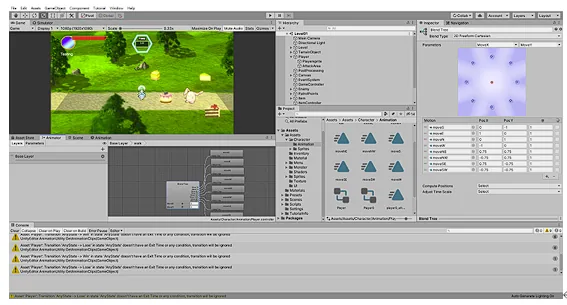
- Create a Blend Tree in the Animator and set its Blend Type to 2D Freeform Cartesian.
- Add two float parameters,
MoveXandMoveY, and assign them to the tree. - Add the eight clips and position them by direction:
| Motion | MoveX | MoveY |
|---|---|---|
| moveN | 0 | 1 |
| moveNE | 0.75 | 0.75 |
| moveE | 1 | 0 |
| moveSE | 0.75 | −0.75 |
| moveS | 0 | −1 |
| moveSW | −0.75 | −0.75 |
| moveW | −1 | 0 |
| moveNW | −0.75 | 0.75 |
The diagonals use 0.75 rather than 1 so that all eight points sit roughly on the same circle, giving each direction a similar share of the space.
3. Drive it from code
The character moves across the ground of a 3D scene, so the x and z components of its velocity feed MoveX and MoveY:
// Feed the blend tree from the character's movement on the ground plane (x, z).
Vector3 v = rb.linearVelocity;
Vector2 move = new Vector2(v.x, v.z);
float speed = move.magnitude;
animator.SetFloat("Speed", speed);

// Only update the facing while moving, so an idle character keeps looking the way it last walked.
if (speed > 0.05f)
{
    move /= speed;
    animator.SetFloat("MoveX", move.x);
    animator.SetFloat("MoveY", move.y);
}
Updating the direction only while moving matters: otherwise the parameters drop to zero the moment the character stops, and it snaps back to a default facing.
Why can sprite animations “blend” at all?
Skeletal 3D animations can be interpolated, but sprites are discrete images. For properties that cannot be interpolated, the Animator uses the clip with the highest weight, so the blend tree effectively picks the nearest direction, which is exactly what an eight-direction character needs.
Unity also has a 2D Simple Directional type, designed for one clip per direction, which suits this case just as well. If you later add a run animation in the same directions, 2D Freeform Directional is the better fit.
Reference
freeCodeCamp’s Unity 3D Tutorial – Beat Em Up Fight Game walks through a related Animator setup.