Building a voxel game asset in MagicaVoxel and Unity
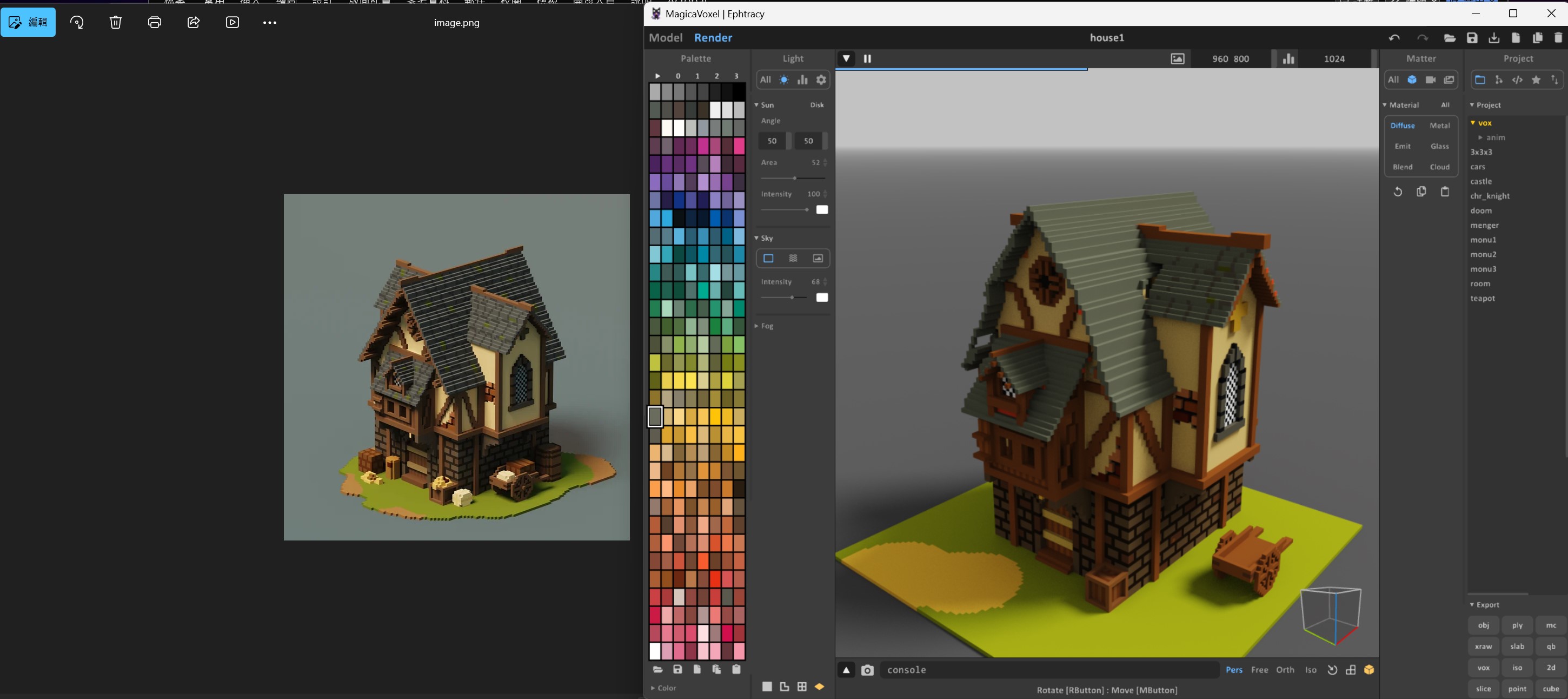
Voxel art looks simple because every form is built from cubes. The difficult part is deciding which cubes carry the silhouette, scale and personality of the object. This walkthrough uses my medieval house study: I started from a small isometric reference, rebuilt it in MagicaVoxel and prepared it as a reusable Unity environment asset.
1. Read the reference as large shapes
Before placing details, separate the image into masses: ground footprint, lower stone floor, upper timber floor, roof, entrance and props. Decide a voxel scale that keeps doors and windows consistent. I use the door as the measuring stick, because it immediately tells the player how large the building is.
Do not trace every pixel. The reference provides proportion and mood; the model needs a clean silhouette from the game camera.
2. Block out the full building
Start with one colour per material and build only the footprint, walls and roof. Rotate the camera often. A house that looks correct from the reference angle may have a weak side or an unreadable entrance. Keep the blockout editable until all views work.
For production assets, separate repeated parts into objects: wall sections, roof modules, windows, barrels and carts. Modular pieces reduce modelling time and give the level designer more combinations inside Unity.
3. Limit the palette
A tight palette helps voxels read as a designed object rather than visual noise. My house uses warm plaster, dark timber, cool roof tiles, stone and a small green accent. Each material receives a base colour, one shadow colour and one highlight colour. Large value differences are more useful than dozens of nearly identical shades.
4. Add depth where it changes the silhouette
Push beams, window frames and roof edges one or two voxels away from the wall. Recess doors and windows. These small offsets create shadows and make the building readable under different lighting. Spend detail on the entrance, roofline and corners first; flat wall texture can remain quiet.
5. Export for Unity
Save the original .vox file, then export an .obj mesh and its material texture. Keep the OBJ, MTL and PNG together when importing. MagicaVoxel’s coordinate orientation and pivot may not match the scene, so treat import settings as part of the asset pipeline rather than fixing every instance by hand.
- Place the model close to the origin before export.
- Keep a consistent voxel-to-Unity scale across the project.
- Use descriptive object and material names.
- Remove unseen test objects from the export scene.
6. Create a Unity prefab
- Import the exported files into one asset folder.
- Correct orientation and scale on a parent GameObject.
- Use a crisp material: point filtering suits an intentionally pixel-like palette.
- Add simple box colliders for walls and floors instead of using a detailed mesh collider.
- Set static flags where appropriate, then save the complete object as a prefab.
If the building has an interior, use separate roof and wall groups. They can be hidden when the player enters, which keeps the camera useful without maintaining two versions of the asset.
7. Test it as a game object
Place a standard-height character beside the house. Check doorway clearance, stair height, camera collision and whether interactive points remain visible. Test the model under the project’s real lighting, not only MagicaVoxel’s render view. A beautiful render can still produce a dark doorway or noisy roof in motion.
Optimisation that preserves the style
Combine static modules where it reduces draw calls, reuse one palette texture, and keep collision simple. For large worlds, add distance culling or simpler far-view meshes. Optimisation should preserve the chunky silhouette; aggressive smoothing usually weakens the voxel look.
This house study informed the modular asset workflow used in Expandica. The important lesson is that voxel art becomes game-ready when scale, pivots, materials, collision and reuse are designed at the same time as the model.